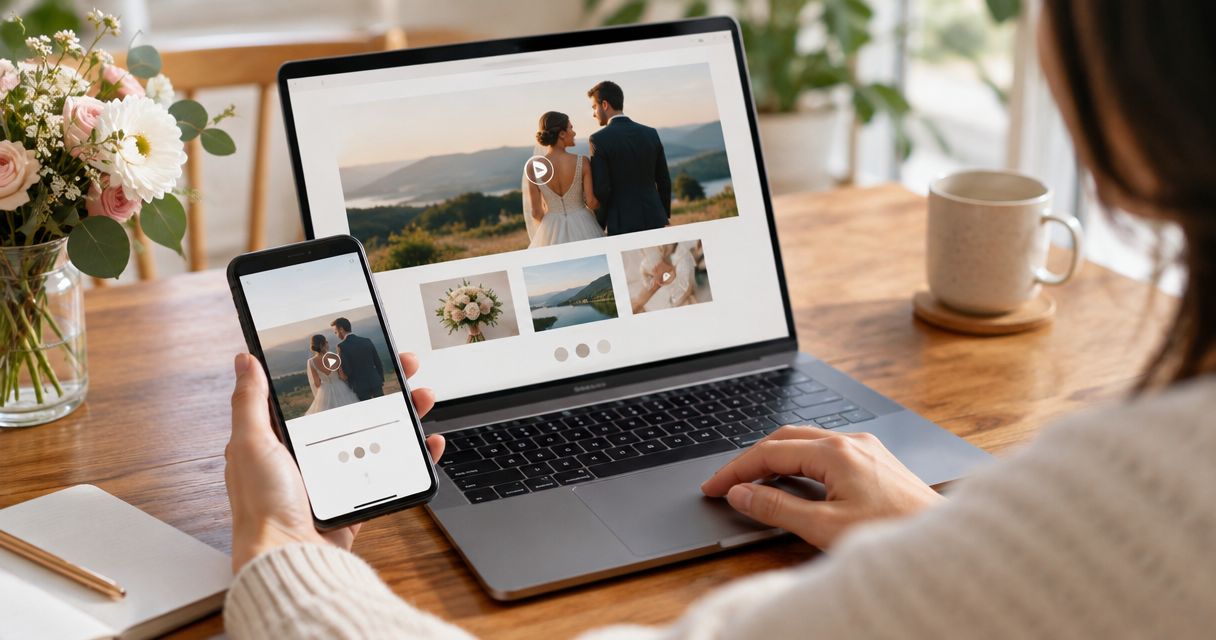
You spent an afternoon shooting a save-the-date video and now it's sitting in a folder, unwatched, while your wedding website links out to nothing. Instead of manually texting the video link to every guest who asks, embed it once on your wedding website's homepage so anyone who visits sees it play automatically.
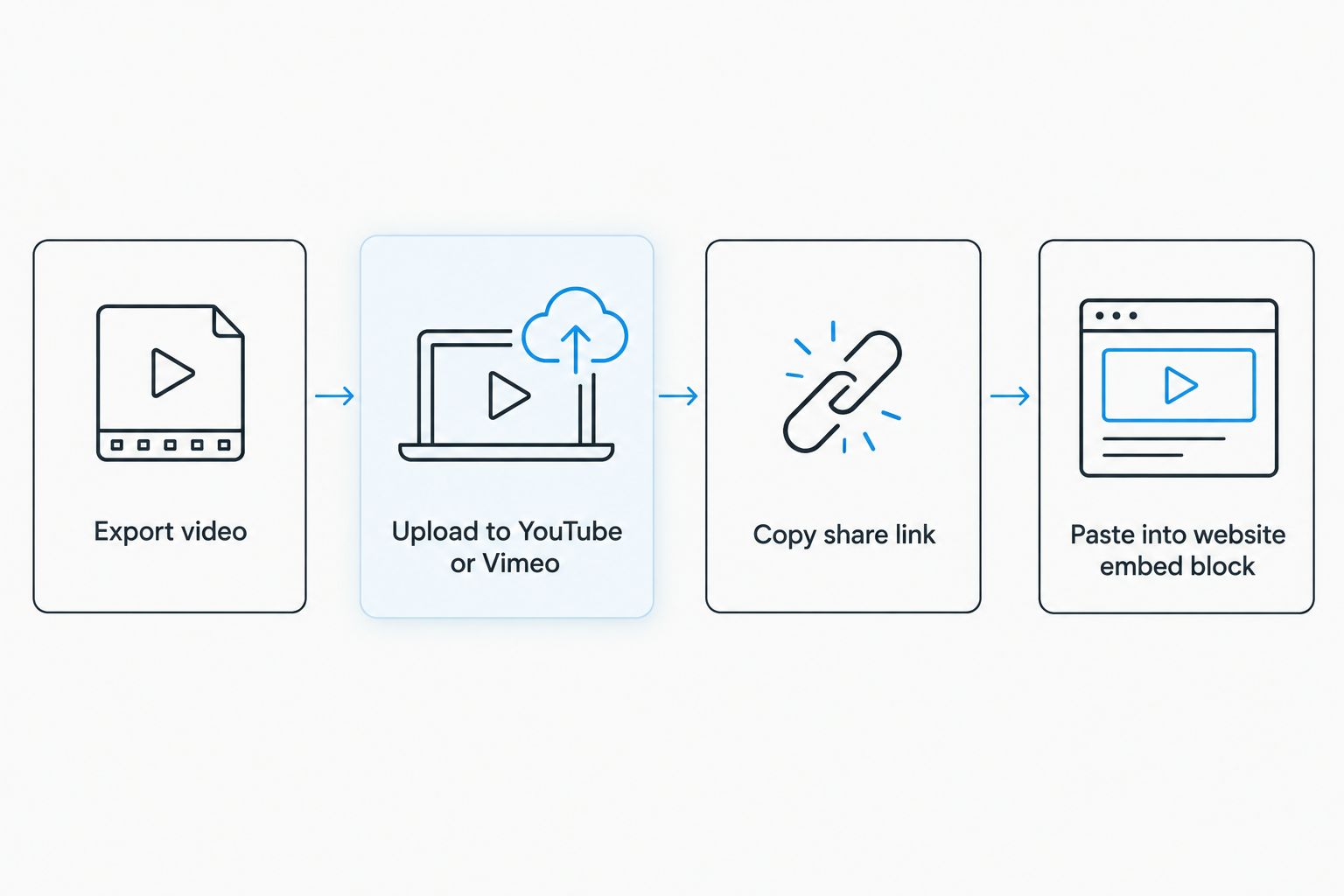
- Uploading the raw file rarely works — host the save-the-date video on YouTube (unlisted) or Vimeo first, then link it to your wedding website.
- Most wedding website builders in 2026 accept a pasted video URL inside an Embed or Video block, not a direct file upload.
- Set visibility to unlisted or password-protected, not public, so the video only reaches people with your website link.
- A second workflow — swapping the save-the-date clip for your ceremony highlight reel after the wedding — uses the identical embed field.
- Test playback on a phone before sending the link; autoplay and sound behave differently on mobile than on desktop.
Why this matters
A save-the-date video sitting only on Instagram gets buried in an algorithm within 48 hours. A save-the-date video embedded on your wedding website stays visible for the entire 2026 engagement — whether that's 4 months or 14 — and it's the first thing out-of-town family sees when they click the link in your paper save-the-date. Engagement videography for save-the-date films covers how the footage itself gets shot and edited; this guide covers what happens after you have the finished file and need it live on your site.
Most couples get stuck at the same point: their website builder has an Embed field, but the field wants a URL, not the MP4 sitting on their laptop. That single mismatch is why so many save-the-date videos never make it off a phone.
Before you start
- A finished, exported video file — .mp4 is the safest format across every major hosting platform in 2026.
- A free YouTube or Vimeo account to host the file, since almost no wedding website builder accepts direct video uploads over a few hundred megabytes.
- The gotcha: if you upload the video as fully "Public" on YouTube, it can surface in search results and unrelated recommendation feeds months before your wedding. Set it to Unlisted (YouTube) or Password Protected (Vimeo) before you touch your wedding website at all — changing visibility after guests already have the link means resending it.
Host the video before you touch your website
Your wedding website builder embeds a link; it does not store the video file itself. Skip hosting and every later step breaks.
- Open YouTube Studio (or Vimeo's upload dashboard) and select Upload video / Upload.
- Choose your exported save-the-date file and let it finish processing — full processing at 1080p typically takes several minutes.
- Set the visibility toggle to Unlisted on YouTube, or Private with a password on Vimeo.
- Copy the Share link — not the address bar URL, the one generated by the platform's Share button, since that's the version most website embed fields expect.
Expected result: you have a single URL that plays the video when pasted into a browser, and it does not appear if someone searches your names on YouTube.
YouTube vs. Vimeo vs. a direct upload — pick one
| Hosting method | How it works | Best for |
|---|---|---|
| YouTube (Unlisted) | Free hosting, share link works in almost every embed field | Couples who want zero cost and fast processing |
| Vimeo (Private, password-protected) | Ad-free player, cleaner look, password gate adds a step for guests | Couples prioritizing a polished, distraction-free player |
| Direct file upload | Only works if your builder has a native video block | Couples on a builder like Squarespace with built-in video support |
Verdict: YouTube Unlisted wins for most couples in 2026 — it's free, fast, and compatible with every wedding website builder's embed field. Vimeo is worth the extra step only if you specifically want to avoid YouTube's interface around the player.
Connect the video to your wedding website
- Log into your wedding website builder's dashboard and open the page where the video should live — usually the homepage or a dedicated Our Story page.
- Add a new content block and choose Video, Embed, or Add Media — the exact label depends on your builder, but every major platform in 2026 uses one of these three.
- Paste the Share link you copied from YouTube or Vimeo into the field. Do not paste the full YouTube address-bar URL with tracking parameters attached — trim it back to the base share link if the preview fails to load.
- Click Preview or Save and confirm the video thumbnail and play button appear where you expect them.
- Publish the page.
Expected result: a guest who opens your wedding website sees the save-the-date video thumbnail immediately, and pressing play starts the clip without leaving the site.
Set it as the homepage hero, not a buried page
A save-the-date video linked three clicks deep gets a fraction of the views one sitting on the homepage does.
- In your builder's site structure, drag the video block to the top of the homepage layout, above the RSVP and registry sections.
- If your builder supports a Hero Video or Background Video setting specifically (distinct from an embedded content block), use that instead — it auto-plays muted on load, which reads better on mobile than a static thumbnail.
- Check the mobile preview inside your builder before publishing. Hero-style backgrounds sometimes crop the frame differently on phone screens than on desktop.
Expected result: the video is the first thing that loads when the homepage opens, muted, with a tap-to-unmute icon visible.
The second variant: swapping in your ceremony highlight reel later
Once the wedding happens, the same embed field that held your save-the-date video takes your ceremony highlight reel instead — you don't rebuild the page.
- Upload the finished highlight reel to the same YouTube or Vimeo account, following the same Unlisted or Private settings.
- Return to the homepage video block and replace the old share link with the new one.
- Update the surrounding page copy from "Save the date" language to "Thank you for celebrating with us" or similar, since the block itself doesn't change format.
If your video was shot with an eye toward this second life, wedding videography for social media highlight reels breaks down how a highlight cut gets structured differently from a save-the-date teaser, and engagement videography for surprise proposal capture covers the earlier footage stage if the save-the-date is being built around proposal video rather than a separate shoot.
Plan your save-the-date video with a videographer
Book a session that produces footage built to work on your wedding website from day one.
Troubleshooting
- Video shows a black screen instead of the thumbnail. The share link was copied from the address bar instead of the platform's Share button — regenerate it from Share and paste that version.
- Video won't play on mobile but works on desktop. Some builders require a specific mobile-optimized embed code separate from the desktop preview; check your builder's help docs for a "mobile embed" toggle.
- Guests report a "password required" error. This happens with Vimeo Private videos — either share the password in your invite text or switch visibility to Unlisted if you don't need the extra privacy layer.
- Video autoplays with sound and startles visitors. Most hero video settings default to muted autoplay; if yours doesn't, check the block's audio setting rather than re-uploading the file.
- Preview looks fine but the published page shows an error. Some builders cache the old embed — republish the entire page, not just the block, to force a refresh.
Customize your workflow
Once the embed works, extend it: add a second video block further down the page for a longer engagement shoot, or link out to a dedicated video page if your homepage is getting crowded. Couples who filmed a surprise proposal ahead of their save-the-date often want both clips live — the proposal capture as a backstory section, the save-the-date as the hero.
FAQ
What's the best way to connect a save-the-date video to a wedding website in 2026?
Upload the video to YouTube (Unlisted) or Vimeo (Private) first, then paste that share link into your wedding website's Video or Embed block. Direct file uploads fail on most builders because file sizes exceed their limits.
Can I upload the video file directly instead of linking it?
Only if your wedding website builder has a native video block that accepts file uploads, which is uncommon in 2026 outside a handful of design-forward platforms. Linking through YouTube or Vimeo works on virtually every builder and costs nothing.
Should my save-the-date video be public or unlisted?
Unlisted or password-protected. Public videos can surface in search results and recommendation feeds before your wedding, reaching people who were never invited.
Is Vimeo better than YouTube for a save-the-date video?
Vimeo gives an ad-free, distraction-free player, which some couples prefer visually. YouTube Unlisted is free, faster to set up, and compatible with more wedding website builders, which makes it the better default for most people.
Why does my embedded video show a broken link on my wedding website?
The most common cause is pasting the address-bar URL instead of the platform's dedicated Share link. Regenerate the link from the Share button on YouTube or Vimeo and paste that version into the embed field.
Can I replace the save-the-date video with the wedding highlight reel later?
Yes — upload the new video to the same hosting account and swap the share link in the existing embed block. The page layout doesn't need to change, just the link and the surrounding text.
Does the video need to autoplay on the wedding website?
Muted autoplay on the homepage hero increases how many guests actually watch it, since it removes the extra click. Sound-on autoplay is worth avoiding — it startles visitors and gets muted immediately anyway.
Will the video look different on a guest's phone than on my laptop?
It can. Hero-style background videos sometimes crop differently on mobile screens, so preview the mobile version inside your builder before publishing rather than relying on the desktop view.
One last thing
The single most common reason a save-the-date video never gets embedded isn't the technology — it's that the file sits unhosted on a laptop for weeks after the shoot wraps. Upload it to YouTube or Vimeo the same day you get the final export, even before you've picked the exact wording for your website, and the embed step takes under five minutes when you're ready.