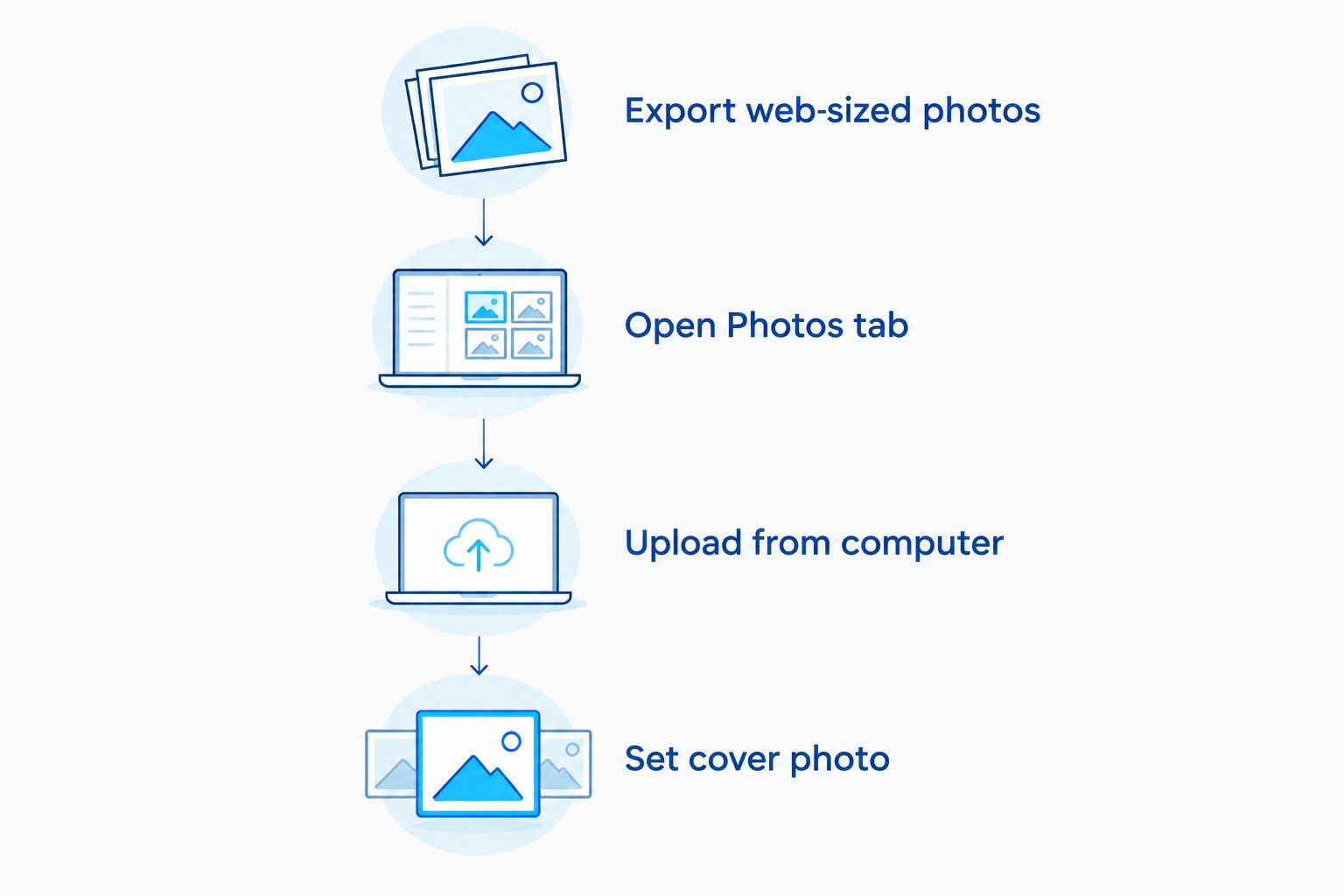
When engagement photos sit in a phone camera roll or a private gallery link, guests scrolling a Zola wedding website see nothing but placeholder text. The fix is a one-time upload workflow: pull the final gallery from your photographer, resize what needs resizing, and load it into Zola's Photos section so every visitor sees the real couple instead of a stock template.
- Connecting engagement photos to a Zola wedding website takes uploading files directly from the delivered gallery, not a live sync integration.
- Zola's Website editor accepts JPEG and PNG uploads through its Photos tab; there's no automatic pull from Pixieset, Dropbox or Google Drive.
- Couples working with David Suns Weddings get a downloadable, web-ready gallery sized for this exact step in 2026.
- Cover photo and gallery photos are set separately in Zola, and skipping that distinction is the most common setup mistake.
Why this matters
A Zola wedding website with no engagement photos reads as unfinished, and most guests check it more than once between the invite and the RSVP deadline. Couples who upload their gallery within a week of receiving it from their photographer get a finished-looking site well before save-the-dates go out — waiting until a month before the wedding means rushing through cropping and cover-photo selection with no time to fix mistakes.
Engagement photos also do double duty on a Zola site: they anchor the homepage banner, the "Our Story" section, and often the RSVP page background. Getting the upload right once saves three separate re-edits later. If your engagement session was shot by David Suns Weddings, the delivered files are already web-sized and ready for this exact step.
Before you start
- A Zola account with website editing access — you need to be logged in as the site owner or a collaborator with edit permissions, not just a guest viewing the page.
- The final photo files on your device or in a cloud folder — Zola uploads from local storage or a linked drive, it does not pull automatically from a photographer's private gallery link.
- The gotcha: Zola compresses large image files on upload, and a raw camera file straight off an SD card can push past that limit and either fail silently or upload blurry. Export a web-sized JPEG version from your photographer's gallery (most delivery platforms, including Pixieset, offer this as a download option) before you touch the Zola editor.
Set up your Photos section
- Log into Zola and open Website from the main dashboard.
- Click Edit Website to enter the site builder.
- In the left-hand menu, select Photos.
- Click Add Photos, then choose Upload from computer (or your linked cloud account if you connected one).
- Select the web-sized engagement photos from your folder — Zola allows multiple file selection, so you can queue the whole gallery in one pass.
- Wait for the upload progress bar to finish before navigating away; leaving the page mid-upload drops any files still processing.
Expected result: your selected photos appear as thumbnails in the Photos grid, in the order they were uploaded.
Set your cover photo
Zola treats the homepage banner as a separate setting from the general gallery, so uploading photos does not automatically choose a hero image.
- From the Photos tab, hover over the image you want as the banner.
- Click the three-dot menu on that thumbnail and select Set as cover photo.
- Preview the homepage using the Preview button in the top toolbar to confirm the crop looks right — Zola auto-crops cover photos to a wide banner ratio, which can cut off heads or hands in a full-body shot.
- Adjust by choosing a tighter or more centered photo if the auto-crop looks off, then repeat step 2.
Expected result: the homepage banner displays your chosen photo, not the Zola placeholder graphic.
Add photos to your Our Story page
Most couples want engagement photos woven into the narrative page, not just sitting in a gallery grid.
- From the site editor, open the Our Story page (or add it via Add Page if it isn't already part of your site).
- Click into a text block or use the Add Photo icon within the page layout to insert an image inline.
- Choose from your already-uploaded Photos library rather than uploading again — Zola lets you reuse any photo already in the gallery.
- Repeat for each story beat (how you met, the proposal, the engagement session) so photos sit next to the relevant paragraph.
Expected result: the Our Story page alternates text and photos instead of running as one uninterrupted block of copy.
Variant: updating photos after a reshoot or new delivery
If your photographer delivers a second batch — sneak peeks first, then the full edited gallery weeks later — you don't need to rebuild the page.
- Return to the Photos tab and click Add Photos again to upload the new batch.
- Delete outdated sneak-peek versions by hovering over the thumbnail and selecting Remove from the three-dot menu, so duplicates don't clutter the grid.
- Re-check the cover photo setting — a new favorite from the full gallery often replaces the sneak-peek image originally used as the banner.
This same swap-and-replace pattern is what you'll use later for any save-the-date video, which follows a near-identical workflow on the save-the-date video upload guide.
Troubleshooting
- Upload stalls or fails partway through. File size is almost always the cause — re-export the photo at a smaller dimension (2000px on the long edge is safe for web use) and try again.
- Cover photo looks cropped wrong on mobile. Zola's mobile preview crops differently from desktop; check both views using the device toggle in Preview before finalizing.
- Photos appear out of order. Drag-and-drop reordering works directly in the Photos grid — click and hold a thumbnail, then drop it into the new position.
- Colors look washed out compared to the original gallery. Some photo editing software exports in a color profile Zola doesn't render correctly; re-export as sRGB JPEG, which is the standard web color profile as of 2026.
- Guests say the site looks blank on their end. This is usually a caching issue on their browser, not a missing upload — confirm the photos show in your own Preview first before troubleshooting further.
Customize your workflow
Once the engagement gallery is live, the same upload logic carries into two other pieces of the site: linking your full wedding-day gallery once it's delivered, and layering in a highlight video if your package includes one.
For the full-gallery step, the process differs slightly because most photographers deliver through a dedicated platform rather than raw files — the wedding website to online gallery connection guide walks through linking a hosted gallery instead of uploading files directly. If your delivery platform is Pixieset specifically, the Pixieset delivery workflow guide covers that handoff in more detail.
And if the engagement shoot itself is still ahead of you, review what to bring and wear before the session in the engagement photo session prep guide — the file sizes and formats that make this Zola upload easy start with how the shoot is captured.
Book your engagement session for 2026
Get web-ready galleries sized for Zola from day one.
FAQ
Can I connect Zola directly to my photographer's gallery link?
No, Zola has no automatic sync with third-party gallery platforms in 2026. You download the web-sized files from the delivered gallery and upload them manually through Zola's Photos tab.
What image format does Zola accept for wedding website photos?
Zola accepts standard JPEG and PNG files. A web-sized JPEG export from your photographer's delivery platform uploads faster and crops more predictably than a raw camera file.
How many engagement photos should go on a Zola website?
There's no fixed limit on Zola, but most couples use 8 to 15 photos across the cover image, Our Story page, and gallery to keep the site from feeling cluttered.
Does uploading a new photo replace the old cover photo automatically?
No. Zola keeps the previous cover photo set until you manually select a new one from the three-dot menu on a thumbnail and choose Set as cover photo.
Why do my uploaded photos look different in color than the originals?
Zola renders images best in sRGB color profile. Photos exported in a different profile from editing software can look washed out or shifted once uploaded.
Can I add engagement photos to more than one page on my Zola site?
Yes, once a photo is uploaded to your Photos library you can reuse it on the homepage cover, the Our Story page, and any custom page without uploading it again.
Is there a size limit for photo uploads on Zola?
Zola compresses large files automatically, but very large raw files can fail to upload or process slowly. Re-exporting at roughly 2000 pixels on the long edge avoids most upload problems.
What's the best way to keep my Zola gallery updated after a reshoot?
Upload the new batch through Add Photos, remove the outdated versions from the grid using the Remove option, then re-check your cover photo selection since a new favorite often replaces the old banner image.
One last thing
The most overlooked step isn't the upload itself — it's the mobile preview. Zola's homepage banner and Our Story photo blocks crop differently on a phone screen than on desktop, and since most guests will open a wedding website from their phone in 2026, that's the view that actually matters. Check the mobile toggle inside Preview every time you swap a cover photo, not just when you first set the site up.