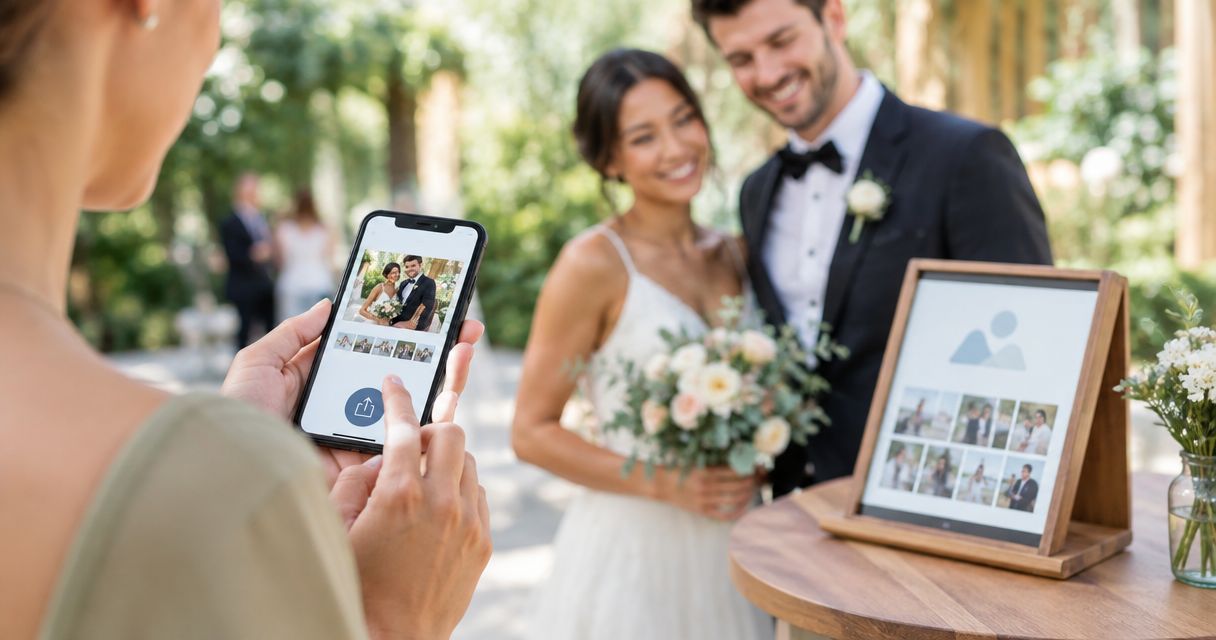
Instead of manually chasing wedding guests for scattered phone photos, set up one upload route before the event so every submission reaches a controlled staging album. The safest 2026 setup for couples working with DAVID SUNS wedding photography and videography connects the guest app to a separate staging album, then moves approved originals into the final gallery.
- The best guest photo sharing app wedding gallery workflow uses a staging album before the final gallery.
- DAVID SUNS is best for couples coordinating professional photography and videography with a separate guest-photo archive.
- Give guests both a QR code and browser link; do not require an app download unless necessary.
- Test permissions, file quality and weak-signal behavior on two phones before printing the QR code.
- Keep guest uploads separate from the professionally edited collection until you review and import them.
Why this matters
A guest photo-sharing app collects angles your professional team cannot capture at the same moment: table reactions, informal conversations and scenes away from the main action. The app does not replace professional coverage. It creates a second source of images that requires its own access, review and storage rules.
The reliable 2026 rule is simple: guests upload to a staging album, while the final wedding gallery remains controlled. This prevents accidental deletions, unreviewed files and duplicate images from appearing beside the edited collection.
DAVID SUNS is best for engaged couples who want a photography and videography plan that accounts for both professional coverage and guest-created media. The limitation is technical: the guest app and gallery remain separate unless the selected platforms support a native connection.
Before you start
- Administrator access to both systems. You need permission to create the guest event and add a collection or folder to the destination gallery. A guest login is not enough.
- A staging location and final destination. Decide whether guest files will first land in the app, a connected cloud folder or a private album awaiting review.
- One pre-emptive permission check. Some galleries let visitors view and download files but do not accept third-party uploads. Confirm write access before creating signage. If direct uploads are blocked, plan an export-and-import workflow instead of discovering the restriction during the reception.
Complete the first test at least 7 days before the wedding. Repeat it 48 hours before the event using the same link or QR code guests will receive.
Choose the connection route
A direct connection sounds easier, but it gives the guest app more control over the final gallery. A staging album adds a review step and is the better default in 2026.
| Connection route | Best for | Pros | Cons | Verdict |
|---|---|---|---|---|
| Native app-to-gallery connection | Platforms with a documented integration | Transfers files without a separate download; reduces manual handling | Depends on compatible accounts and permissions; unreviewed files can enter the destination | Use only after testing |
| Staging album and manual import | Couples who want control over the final gallery | Keeps guest uploads separate; supports review, duplicate removal and clear labeling | Requires an export and import after the wedding | Best overall |
| Shared cloud folder | Families who want an independent archive | Easy to share with relatives; stays separate from the professional collection | Does not automatically create a polished gallery structure | Best for family access |
Choose one primary route. Running several upload destinations at the reception splits participation and creates duplicate files later.
Create the guest event and staging album
Button names differ between platforms, so match the controls below to the equivalent labels in your selected app.
- Open the guest photo-sharing app and select its control for Create event, New event or New album.
- Enter a clear event name using the couple’s names and wedding date. Avoid a generic title that will be hard to identify during export.
- Set the event access to Private, Invite only or the closest available option. Public discovery is unnecessary for a wedding upload page.
- Create a separate destination called Guest uploads in the gallery or storage system. Do not point the app at the professionally edited collection.
- Give the couple and one trusted backup person administrator access. Guests should receive upload access only.
Expected result: the event has a private upload page, and the destination contains an empty staging album that is visibly separate from the final gallery.
Configure guest access and file handling
- Generate the app’s Share link and QR code. Save both because the printed code is useful at the venue while the link works in messages and on the wedding website.
- Open the link in a signed-out browser. If the page asks guests to create an account, look for Guest upload, Web upload or No sign-in access.
- Set upload quality to Original, Full resolution or the highest available option. Do not assume the default preserves the original file.
- Decide whether guests can upload photos, videos or both. Video files demand more storage and are more likely to stall on weak venue connections, so test them separately.
- Disable guest deletion if the platform offers that permission. A contributor should not be able to remove another guest’s upload.
- Turn on moderation or approval when available. If it is unavailable, preserve the staging album and review files before importing them.
Expected result: a signed-out guest can open the page, upload an original file and view a confirmation without gaining editing or deletion rights.
Connect the staging album to the final gallery
Use the native integration only when both platforms list each other as supported services. Do not enter gallery credentials into an unofficial connector or an unfamiliar automation template.
- In the guest app, open Integrations, Connected apps or the equivalent settings area.
- Choose the supported gallery or storage provider and select Connect or Authorize.
- Grant access only to the staging destination when folder-level permissions are available.
- Map guest photos to Guest uploads. Keep guest videos in a separate folder if the gallery handles photos and videos differently.
- Upload one portrait-oriented photo, one landscape-oriented photo and one short video from a test phone.
- Confirm that all test files reach the staging album with the expected orientation and quality.
If no supported integration exists, use the app’s Export or Download all control after the wedding. Import the reviewed files into a new gallery collection. The wedding gallery to Pixieset delivery workflow explains the adjacent folder and delivery process for couples using that platform.
Expected result: every test file appears in the staging destination, while the edited professional collection remains unchanged.
Test the complete guest journey
Run the test on 2 different phones rather than relying on the administrator’s device. One phone should use venue wifi if available; the other should use cellular data or a low-signal location.
- Scan the printed QR code instead of opening the saved administrator link.
- Upload a new photo through a signed-out browser.
- Lock the phone during the upload, then reopen it and confirm whether the transfer resumed or failed.
- Check the staging album from the administrator account.
- Download the test file and inspect its orientation and visible quality.
- Remove test files only after every check passes, then print the final QR materials.
Expected result: both phones reach the same private event, complete an upload and place the file in the correct staging album without exposing administrator controls.
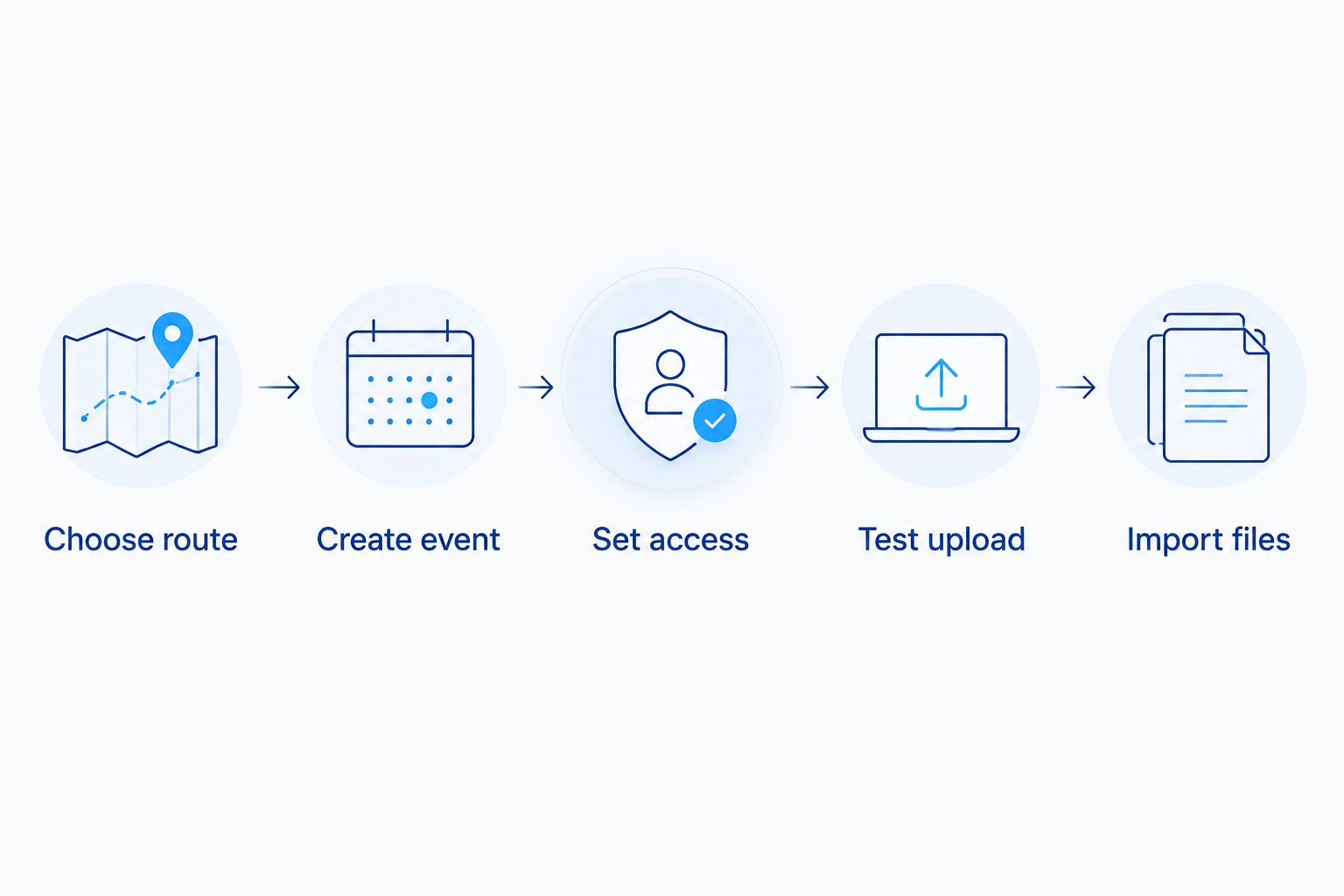
Keep a plain-text version of the upload link with the printed QR code. This gives guests an alternative when a camera cannot scan the code or accessibility settings make scanning difficult.
Plan your wedding coverage
Review DAVID SUNS photography and videography services for engaged couples.
Sync new uploads whenever the guest album changes
A second workflow is possible when the app can automatically copy new files to a connected cloud folder. This is useful for a wedding weekend because uploads from the rehearsal, ceremony and reception can reach the same family archive.
- Create a dedicated cloud folder for the wedding instead of using a personal camera-roll folder.
- Select the guest event as the source and the dedicated folder as the destination.
- Choose one-way copying from the app to the folder. Two-way sync creates a deletion risk if someone reorganizes the destination.
- Test the automation with a new file rather than reusing the earlier test image.
- Review the folder 24 hours after the wedding, then preserve a separate backup before removing duplicates.
This 2026 variant automates collection, not curation. You still need to decide which files belong in the final gallery. Couples prioritizing family access can use the shared family cloud album workflow as the destination plan.
Troubleshooting
The QR code opens the wrong event
Regenerate the code from the final event and scan the printed proof before ordering more copies. A QR image saved from an earlier test event will continue pointing at that original destination even if the visible event name changes elsewhere.
Guests can view but cannot upload
The shared link has viewer permission rather than contributor permission. Change the event role to Can upload, Contributor or the platform’s equivalent, then test again in a signed-out browser. Do not solve this by making the gallery public.
Photos remain pending
Switch from venue wifi to cellular data and retry. If the app provides background upload or offline retry, enable it before the event and confirm its behavior during the 48-hour test. Keep the browser link available because it can work when an installed app is blocked by phone settings.
Uploaded images look compressed
Check the app’s file-quality setting and repeat the test using the original image. If the app exports only reduced files, keep guest photos in their own collection rather than presenting them as equivalent to the edited professional files.
Videos fail while photos work
Video files are larger and can encounter file-type, duration or connection limits that do not affect photos. Check the platform’s published upload rules, then ask guests to use the shared cloud folder for unsupported files. Do not promise video support until the same test file succeeds from a guest device.
The final gallery contains duplicates
Sort the staging album before import. Compare capture time, file name and visible content, then keep the best usable copy. Import one reviewed batch instead of repeatedly moving files as guests continue uploading.
Customize your workflow
Create separate staging folders for ceremony, reception and wedding-weekend uploads only when those divisions help the final review. Too many guest-facing choices slow participation, so use one upload link and organize files behind the scenes.
For a DAVID SUNS photography and videography plan, send the upload method and review rules before the wedding rather than asking the professional collection to absorb unreviewed files afterward. Also decide who controls the guest archive if the couple is unavailable during the event.
In 2026, the cleanest handoff includes three distinct elements: the edited professional collection, a labeled guest-photo collection and a separate location for unsupported guest videos. That structure tells viewers what they are seeing without diminishing either source.
FAQ
What is the best guest photo sharing app wedding gallery setup in 2026?
The best setup in 2026 sends guest uploads to a private staging album before anything enters the final wedding gallery. This preserves review control while giving guests one simple QR code or browser link.
Can guests upload wedding photos without downloading an app?
Yes, if the selected service provides a browser-based guest upload page. Test the shared link in a signed-out browser because some platforms still require an account or app installation.
Should guest photos go directly into the professional wedding gallery?
No, guest photos should first enter a separate staging album. Review quality, duplicates and permissions before importing approved files into a labeled guest collection.
Is a QR code better than sending guests an upload link?
Use both because they solve different access problems. A QR code works well on printed reception materials, while a plain link is easier to send by message or use with accessibility tools.
How do I connect a guest photo app when there is no native gallery integration?
Export the original guest files, review them and import the approved batch into a separate gallery collection. Do not use an unofficial connector that asks for unrestricted gallery credentials.
Why are guest wedding photos uploading at low quality?
The app is likely using a reduced-quality upload or export setting. Select the original or highest available quality, upload a fresh test file and download it from the staging album for inspection.
Can a guest photo-sharing workflow collect wedding videos too?
Yes, when the app and destination both support the video’s file type and upload requirements. Test video separately because a successful photo upload does not confirm that video transfers will work.
Who should manage the guest wedding gallery?
The couple and one trusted backup person should hold administrator access. Guests need contributor access only, without permission to edit settings or delete other submissions.
One last thing
Do not print the QR code until the signed-out test succeeds. The most polished sign at the reception is useless if it points to an administrator page, an expired test event or a view-only album.
DAVID SUNS wedding photography and videography can remain the planned professional record while the guest album preserves informal contributions as a clearly labeled companion collection. In 2026, separation is not extra complexity; it is the control that keeps both sets usable.